
We can't find the internet
Attempting to reconnect
Something went wrong!
Hang in there while we get back on track
Export Compressed Song
by
Conner_Bw
Export Compressed Song
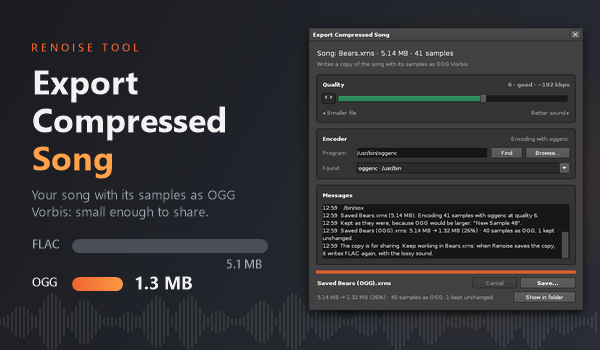
Save a copy of your song with its samples as OGG Vorbis. The copy is often a quarter of the size or less, which makes it easy to email, upload to a forum or share in a chat.
Renoise stores samples in a song as lossless FLAC. That is right for working on a song, but it makes songs with many or long samples large. This tool writes a second file in which the samples are lossy OGG Vorbis. Patterns, instruments, effects, automation, loop points and slices stay as they are.
How to use it
- Open your song and choose File > Export Compressed Song….
- Pick a quality. 6 is a good start. Lower numbers give smaller files, higher numbers better sound.
-
Check that the encoder points to
oggenc,ffmpegorsox(see below). -
Press Save… and choose a name for the copy, for example
My Song (OGG).xrns.
The tool saves your song first, so the copy has your latest changes. Your song stays lossless and keeps its name. The status line shows the progress, and at the end how much smaller the copy is. The Messages box below lists what happened: which encoder was found, samples that stayed as they were and why, and encoder errors. Show in folder opens the folder of the copy. Cancel, or closing the dialog, stops the export, and then no file is written.
You can also give the dialog a key under Global > Tools > Export Compressed Song… in the Renoise keyboard preferences.
The copy is for sharing
Renoise opens the compressed song like any other song. When you save it again in Renoise, Renoise writes its samples back as FLAC: the file gets larger again, but the sound stays lossy. Keep working in your original song, and export a new copy when you want to share it again.
A sample is stored as OGG only when that makes it smaller. Very short samples, such as single-cycle waveforms, are often smaller as FLAC, and they would also lose the most quality, so they stay as they were.
Samples with 24 or 32 bits load as 16-bit samples from the copy. Sample rate, length, loop points and slice markers stay the same.
Getting an encoder
The tool uses a free encoder program: oggenc, ffmpeg or sox. When the
dialog opens without one, it searches your computer, and Find searches
again. Find also looks inside other programs that bring their own ffmpeg,
such as Kdenlive or Cubase. When it finds more than one, pick another from the
list below the path. Browse… lets you choose any file yourself.
Not every ffmpeg can write OGG Vorbis (Krita’s cannot, for example). If the
one you picked cannot, the Messages box says so: choose another one from the
list.
To get an encoder:
-
Windows: download
oggenc2from RareWares (the x64 version) and unpack it somewhere, or install FFmpeg withwinget install Gyan.FFmpeg. -
macOS:
brew install vorbis-toolsgives youoggenc(Homebrew).brew install ffmpegworks too. -
Linux: install
vorbis-tools(foroggenc),ffmpegorsoxwith your package manager.
ffmpeg must include the libvorbis encoder. The usual builds do.
Good to know
- Save the song once before you export it: the tool needs a song file.
- The export cannot replace the song itself. Choose another name.
- Songs larger than 4 GB are not supported.
- If the encoder fails on some samples, those samples stay as they were, and the status line says so.
License
MIT. Source and issues: https://github.com/dac514/xrns-ogg