
We can't find the internet
Attempting to reconnect
Something went wrong!
Hang in there while we get back on track
MCU MIDI COM Mapping tool for PANORAMA T and P serie
by
zrgcz
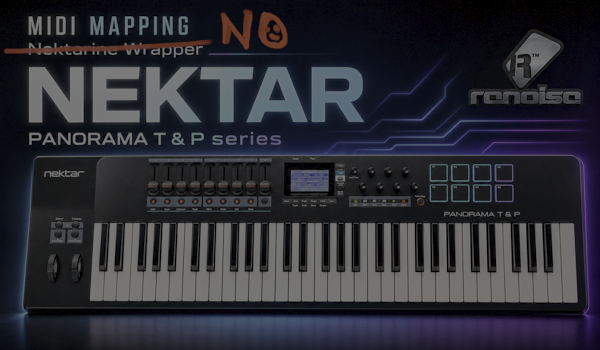
MCU MIDI COM v0.65 - Universal MIDI Learn
MCU MIDI COM is a Renoise Lua tool for deep hardware integration of Nektar Panorama T4/T6 controllers. It controls Renoise directly through the Renoise API and provides feedback for display, LEDs, buttons, encoders and faders.
Version 0.65 focuses on the practical ENC TRACK DSP workflow, automatic per-track encoder target switching and the stable OSC bridge with HYDRA SANITY v8.69.
The tool is intended for users who want a dedicated Renoise control surface without relying on the Nektarine wrapper or Renoise MIDI Map (Ctrl+M) for the main control logic.
1. Core Concept
The Panorama controller is split into clear layers:
- Port 1 / Performance input: notes, pitch bend, modulation wheel and normal keyboard performance. This should stay enabled in Renoise.
- Port 2 / MCU/control surface: faders, encoders, buttons, display and LED feedback. This is owned directly by the tool.
- Optional bridge/routing ports: can be used for advanced setups, but are not required for the standard workflow.
In MCU MIXER mode, the Panorama sends the expected MCU-style control data. You normally do not need to manually map the main controls in Renoise.
In INTERNAL mode, you use Universal MIDI Learn inside the tool, because the controller sends the CC / Pitch Bend / Note / relative CC data defined by the active Panorama preset.
MCU MIDI COM is the hardware-control side. HYDRA SANITY is the automation-graph engine. The two tools communicate through OSC. MCU MIDI COM can create and refresh PANORAMA_E# rows in HYDRA SANITY when W.A. is enabled for encoders.
Main v0.65 workflow idea
The most important production workflow in v0.65 is ENC TRACK DSP:
Select a track in Renoise
→ MCU MIDI COM detects the current Renoise track number
→ ENC1-ENC8 load the target mapping stored for that track
→ each encoder can control a different instrument, DSP or parameter for that track
→ if W.A. is enabled, HYDRA SANITY receives the matching PANORAMA_E# row
This means you can prepare different encoder targets for different tracks and simply switch tracks in Renoise. MCU MIDI COM automatically changes the active encoder surface to the stored Track DSP mapping for the selected track.
2. Hardware Setup: Nektar Panorama T4 / T6
Recommended standard setup:
- Open the Panorama hardware/global settings.
- Set the DAW/control protocol to MCU.
- Verify which MIDI port is assigned to the Panorama MIXER / DAW control surface. This is usually Port 2.
- Switch the controller to MIXER mode.
Important: verify the port assignment before entering the final Mixer workflow. Once the controller is in Mixer mode, the port naming can be less obvious in some systems.
P6 note: Panorama P6 motorized fader behavior is not considered fully supported in this version.
3. Renoise MIDI Preferences
Open Renoise → Edit → Preferences → MIDI.
Recommended configuration:
- Panorama Port 1: enable as normal Renoise MIDI input for playing keys, pitch bend and modulation.
- Panorama DAW / Mixer / Port 2: do not assign it in Renoise MIDI preferences for ordinary MIDI input/output mapping.
- Let MCU MIDI COM open the control port directly.
The tool needs exclusive access to the MCU/control port so it can handle LED feedback, LCD SysEx and button/fader/encoder feedback reliably.
4. Tool MIDI Setup
Typical setup inside the tool:
- MIDI IN P2 CTRL: Panorama DAW / Mixer / Port 2.
- MIDI OUT P2 CTRL: the same Panorama DAW / Mixer / Port 2.
This port handles faders, encoders, buttons, transport/control buttons, LED feedback and Panorama LCD display feedback.
5. DUAL MODE PAGE
The main page is now presented as DUAL MODE PAGE. It keeps encoder, fader and button workflows separated while allowing them to operate together.
The top area includes a manual REFRESH name button. Use it after adding, removing or renaming Renoise DSP devices or parameters when a popup list still shows old names.
Refresh behavior is intentionally controlled:
- refresh runs at START ENGINE,
- refresh runs when changing BANK,
- refresh runs when changing ENC / FADER / BUTTON mode,
- refresh runs when a popup value actually changes,
- manual REFRESH name performs a full name-cache refresh.
There is no periodic polling timer and no device-chain observer loop.
Recommended workflow order
For a clean first setup, use this order:
- Set the Panorama hardware to MCU / MIXER mode.
- Configure Renoise MIDI Preferences so the keyboard performance port stays in Renoise and the control port is owned by MCU MIDI COM.
- Select the Panorama control port as MIDI IN P2 CTRL and MIDI OUT P2 CTRL inside the tool.
- Press START ENGINE.
- Open the ENCODERs Page.
- Set the encoder mode to Track DSP when you want per-track encoder targets.
- Select a track in Renoise.
- Assign ENC1-ENC8 to the intended instrument, DSP or parameter targets for that track.
- Repeat the assignment for other Renoise tracks.
-
Enable W.A. / LCK only for encoders that should create
PANORAMA_E#rows in HYDRA SANITY.
After this setup, switching the selected track in Renoise is enough to load the stored encoder target set for that track.
6. MCU MIXER vs INTERNAL Mode
MCU MIXER mode
Use this mode when the Panorama is working as a classic MCU-style control surface.
-
No Renoise
Ctrl+Mmapping is required for the main tool controls. - Faders and encoders use the expected MCU behavior.
- LED/display feedback is handled by the tool.
- This is the recommended mode for the standard Panorama T4/T6 workflow.
INTERNAL mode
Use this mode when you want to control the tool from a custom Panorama internal preset.
- MIDI Learn stores port slot, message type, channel, number and control mode.
- Encoders can be learned as REL or DEC_REL controls.
- Faders can be learned as absolute Pitch Bend or absolute MIDI CC controls.
- Buttons can be learned as momentary or toggle controls.
7. Buttons Page: B1-B8
The Buttons Page contains four operating modes:
- ARM
- MUTE
- SOLO
- USER
ARM mode
In ARM mode, B1-B8 control ENC1-ENC8 / PANORAMA_E1-PANORAMA_E8.
B1 -> ENC1 -> PANORAMA_E1 -> HYDRA SANITY ARM / LEAVE
B2 -> ENC2 -> PANORAMA_E2 -> HYDRA SANITY ARM / LEAVE
...
B8 -> ENC8 -> PANORAMA_E8 -> HYDRA SANITY ARM / LEAVE
ARM is no longer resolved through the fader track mapping. This is required because HYDRA SANITY writes Panorama automation through PANORAMA_E# rows, which belong to encoder slots.
MUTE mode
B1-B8 control mute/active state for the tracks currently assigned to FAD1-FAD8.
SOLO mode
B1-B8 control solo state for the tracks currently assigned to FAD1-FAD8.
USER mode
B1-B8 can be used for custom user parameter toggles.
8. Buttons MIDI Learn
Buttons Learn supports both common hardware behaviors.
MIDI CC / Note momentary mode
Typical behavior:
press   -> value 100 / 127
release -> value 0
Runtime behavior:
value > 1 -> button press
value 0   -> release ignored
MIDI CC toggle mode
Typical behavior:
first click  -> value 100 / 127
second click -> value 0
third click  -> value 100 / 127
Runtime behavior:
value 100 / 127 -> valid button event
value 0         -> valid button event
Automatic detection during Learn
When a B1-B8 slot is set to W learn mode:
-
If the first value is
0, the tool immediately stores the button as toggle. -
If the first value is greater than
1, the tool waits briefly. -
If a matching
0release arrives inside the detection window, the tool stores the button as momentary. - If no release arrives inside the detection window, the tool stores the button as toggle.
After detection, the slot returns from W to L automatically.
9. FADERs Page
Faders support two MIDI input types:
| Type | Meaning | Resolution |
|---|---|---|
| PB | Pitch Bend absolute fader | 0-16383 |
| CC | MIDI CC absolute fader | 0-127 |
Mixer mode
- FAD1-FAD8 follow the current track bank and control track volume.
- FAD9 controls the master or dedicated master-style fader target, depending on the current setup.
FADER mode
Each FAD slot can be assigned to a selected track, DSP/send device and automatable parameter.
FADER track targets are used by MUTE, SOLO and mixer-style button behavior. They are not used for Buttons ARM mode.
10. ENCODERs Page
Encoders support three encoder modes in the current beta IPC protocol:
ENC_MODE|ABS
ENC_MODE|REL
ENC_MODE|DEC_REL- ABS sends an absolute normalized value directly.
- REL sends a relative delta and a normalized absolute value after synchronization.
- DEC_REL is the practical decoder-relative mode used for Panorama internal relative encoders.
Track DSP mode
Track DSP is the main dynamic encoder mode for working track-by-track in Renoise.
In this mode, ENC1-ENC8 follow the currently selected Renoise track. MCU MIDI COM stores an independent encoder target set for each track.
Typical behavior:
Renoise selected track = Track 01
→ ENC1-ENC8 use the Track 01 mapping

Renoise selected track = Track 05
→ MCU MIDI COM detects Track 05
→ ENC1-ENC8 automatically switch to the Track 05 mapping
Each track can have its own encoder targets:
- instrument automation parameters,
- track DSP parameters,
- send / effect parameters,
- mixer-style parameters,
- plugin parameters exposed through Renoise automation.
This means you can prepare different instruments, DSP devices and parameters for every track. When you switch to another track in Renoise, MCU MIDI COM automatically remaps the active encoder surface to the stored targets for that track.
Track DSP and HYDRA SANITY
If W.A. is enabled for an encoder, the currently active Track DSP target is also sent to HYDRA SANITY as a PANORAMA_E# row.
Practical flow:
Select Track 05 in Renoise
→ MCU MIDI COM loads the Track 05 ENC1-ENC8 targets
→ ENC3 is mapped to a DSP parameter on Track 05
→ W.A. is ON for ENC3
→ HYDRA SANITY receives / refreshes PANORAMA_E3
→ automation can be written through HYDRA SANITY
When you switch to another Renoise track, MCU MIDI COM updates the active Track DSP mapping and refreshes the related MCU rows in HYDRA SANITY. This is a row-model update on the HYDRA side; it is not a full HYDRA DSP topology scan.
Recommended use:
- Select a track in Renoise.
- Assign ENC1-ENC8 to the desired DSP / instrument / parameter targets for that track.
- Enable W.A. for encoders that should write through HYDRA SANITY.
- Enable LCK when the encoder should stay attached as a protected W.A. row.
- Switch to another Renoise track and repeat the mapping.
- During production, simply select the track you want to work on. MCU MIDI COM recalls the correct encoder target set automatically.
Instrument mode
In Instrument mode, E1-E8 control host automation parameters of the selected instrument.
Master 1-3 modes
Master 1, Master 2 and Master 3 are independent global encoder surfaces. They can be assigned to supported track, DSP/send and parameter targets.
11. W.A. and LCK - Write Automation to HYDRA SANITY
Each encoder has its own W.A. button.
When W.A. is enabled for an encoder, movement of that encoder is published to HYDRA SANITY as Panorama write data.
Workflow:
- Assign an encoder to a complete track/DSP/parameter target.
- In Track DSP mode, this assignment is stored for the currently selected Renoise track.
- Enable W.A. for that encoder.
- MCU_COM sends an atomic W.A. attach packet to HYDRA SANITY.
-
In HYDRA SANITY, the active encoder appears as a
PANORAMA_E#automation row. - Write automation through HYDRA SANITY’s ARM, LATCH, STICKY, REC and IRON workflow.
In Track DSP workflow, W.A. follows the active track mapping. If you select another track in Renoise and that track has a different encoder assignment, MCU MIDI COM refreshes the PANORAMA_E# target sent to HYDRA SANITY.
W.A. ready validation
W.A. is now protected by a target-ready gate.
- W.A. ON is blocked if the encoder does not have a complete target.
- LCK ON is also blocked if the encoder target is incomplete.
- W.A. OFF is always allowed, so an existing link can be disconnected safely.
- Invalid or partially filled popup states no longer send malformed W.A. attach packets to HYDRA SANITY.
This prevents accidental PANORAMA_E# rows from being created when track, device or parameter data is missing.
LCK - locked W.A. encoder link
Each encoder also has an LCK button below W.A..
- LCK ON automatically enables the related W.A. button after the same ready validation.
- LCK OFF disables only the lock state and keeps W.A. active.
-
When locked, MCU_COM sends
WALCKtogether with the W.A. attach packet. -
HYDRA SANITY keeps the related
PANORAMA_E#row attached whileREC ON/OFFbehaves like a normal HYDRA row.
Current W.A. attach format:
WA_ON WA3 WALCK WAN_E3:Sands05:Amount WATRK_4 WADEV_2 WAPAR_17Current W.A. detach format:
WA_OFF WA3
WA_OFF is a hard detach for the related encoder slot. It also disconnects rows that were previously attached with WALCK.
12. OSC IPC with HYDRA SANITY v8.69
MCU MIDI COM cooperates with HYDRA SANITY v8.69 through the Zorgan OSC IPC bridge.
Version 0.65 is aligned with the HYDRA SANITY v8.69 row-model workflow. MCU MIDI COM can refresh PANORAMA_E# rows when Track DSP mappings change, while HYDRA SANITY keeps MCU row refresh separated from HYDRA DSP topology scanning.
The OSC runtime path remains OSC-only. The old song.comments IPC layer was removed from the runtime path in v0.64. song.tool_data is still used for persistent mapping/bank data; it is not used as a realtime command bus.
OSC stability
The OSC bridge now includes reload and callback hardening:
- stale server/client handles are closed on reload before opening a new OSC socket,
- OSC liveness is checked through active receiver state, not by trusting a non-zero handle,
-
OSC receive callbacks are wrapped in
pcall()to prevent a malformed packet or stale callback from escaping through the Renoise socket callback layer, - write fallback through song comments is no longer used.
This fixes the situation where OSC could appear enabled while no data was flowing after a tool reload.
OSC-only control flags
Heavy command payloads were replaced with compact control flags.
| Area | Current OSC form |
|---|---|
| W.A. attach / detach |
WA_ON WA# [WALCK] WAN_... WATRK_... WADEV_... WAPAR_..., WA_OFF WA# |
| ARM buttons B1-B8 |
ARM1 … ARM8 |
| SETUP CONTROLL HS buttons |
CB1 … CB6 |
| Linking to graph / SGA | OSC request/response |
| Live encoder write | OSC write stream |
The control flag is treated as a complete sentence inside the main OSC stream. Related tokens are parsed atomically; for example WA_ON WA3 WALCK WAN_... WATRK_... WADEV_... WAPAR_... is one W.A. attach packet, not a set of unrelated flags.
SGA - Send Graph Absolute
For REL / DEC_REL encoders, MCU_COM uses the SGA flag on the first movement after the encoder shadow becomes invalid.
Runtime sequence:
1. MCU_COM sends first REL / DEC_REL event with SGA.
2. HYDRA SANITY reads the current automation graph value for the matching PANORAMA_E# row.
3. HYDRA SANITY sends the graph absolute VALUE back to MCU_COM through OSC.
4. MCU_COM sets the virtual encoder and internal shadow to that graph value.
5. MCU_COM applies the current delta and sends a normal write event without SGA.
After SGA, normal REL / DEC_REL events always carry a normalized absolute VALUE plus the current DELTA.
Future protocol extensions should be added as standalone flags, not as old version branches.
13. SETUP CONTROLL TOOL
The main GUI contains a SETUP CONTROLL TOOL button next to HIDE MIDI LEARN. It opens a separate setup window for additional learnable control buttons.
The window contains three rows:
TRACK -    TRACK +    BROWSE    VIEW
< BANK     BANK >     < ZOOM     ZOOM >
recycle    rewind     fast forward  stop  play  record
Each button is an independent framed object:
- clicking the button starts MIDI Learn for that specific control,
- the button label changes to PRESS B while waiting for input,
-
the mapping row below the button shows the learned source as
[ CC/NOTE | ch ], - MIDI Learn stores the real port slot, message type, MIDI channel, number and detected button mode,
- Clear All MIDI Learn removes all SETUP CONTROLL TOOL mappings and HS states.
The bottom transport-style buttons include an HS switch. When HS is enabled, the button is routed to HYDRA SANITY instead of triggering the local MCU_COM action.
SETUP CONTROLL BANK buttons
The SETUP CONTROLL TOOL also includes two local BANK buttons:
| Button | Function |
|---|---|
| < BANK | load previous controller bank |
| BANK > | load next controller bank |
The physical buttons are simple momentary inputs. MCU_COM turns them into local BANK switching logic internally. Release events are ignored.
14. BANK 1-3 controller profiles
MCU MIDI COM now supports three controller banks:
BANK 1
BANK 2
BANK 3
A BANK is not only a set of mappings. It is the complete active controller context.
Each bank stores:
- encoder mappings,
- fader mappings,
- B1-B8 button mappings,
- active encoder mode,
- active fader mode,
- active buttons mode: ARM, MUTE, SOLO or USER,
- W.A. state for ENC1-ENC8,
- LCK state for ENC1-ENC8.
Only BANK 1-3 are saved to song.tool_data. The active runtime bank is created when the engine starts.
Engine start
On engine start, MCU_COM always loads:
BANK 1The GUI always shows the currently active bank.
Bank switching
When switching banks, MCU_COM performs a controlled local transaction:
1. save-state-bank(x) for the bank being left
2. send WA_OFF WA# to HYDRA for every encoder that had W.A. ON
3. load-state-bank(y) for the selected target bank
4. restore modes, mappings, W.A. and LCK states
5. send WA_ON WA# [WALCK] WAN_... WATRK_... WADEV_... WAPAR_...
   for every ready encoder that has W.A. ON in the new bank
HYDRA SANITY does not receive a BANK command and does not need to know about BANK 1-3. It only receives the standard W.A. detach/attach packets it already understands.
15. Direct HS mappings
The SETUP CONTROLL TOOL transport-style buttons are routed to HYDRA SANITY through compact OSC flags.
| Flag | MCU_COM button | HYDRA SANITY action |
|---|---|---|
CB1 |
REPEAT / CYCLE |
DEL TRACK NOTE and return to row 00 |
CB2 |
REWIND | reserved / no-op |
CB3 |
FAST FORWARD | reserved / no-op |
CB4 |
STOP |
PLAY / PAUSE Safe Listen |
CB5 |
PLAY |
REC PLAY Automation |
CB6 |
REC |
REC PLAY Note and Automation |
In HS mode, MCU_COM does not execute the local button action. It sends the compact CB# flag to HYDRA SANITY so HYDRA can keep its own radio-button behavior and internal transport state logic.
16. Display, LED Feedback and DIAG
The tool sends feedback to the Panorama hardware:
- button LED states,
- mode states,
- selected control targets,
- LCD text feedback,
- W.A., LCK and automation-related status feedback.
For reliable LED and LCD feedback, the MIDI output port must be the same Panorama control port used by the tool.
DIAG MIDI-IN view
The DIAG area can show detailed MIDI-IN activity when it is enabled:
- SYSEX IN shows the latest SysEx message when it appears.
- MIDI IN shows the latest decoded MIDI input event, including CC, Note, Pitch Bend and other channel messages.
- RAW IN shows the raw MIDI bytes in the same order as they arrived from the input port.
When DIAG is OFF, expensive diagnostic work is not performed in the realtime path. MIDI HEX decode, OSC status refresh and diagnostic text/probe updates are gated off to keep CPU usage low during normal performance.
17. Practical First Setup Checklist
- Put the Panorama into MCU / MIXER mode.
- Leave the keyboard performance port enabled in Renoise.
- Do not assign the Panorama DAW/Mixer control port in Renoise MIDI preferences.
- Select the Panorama control port as MIDI IN P2 CTRL and MIDI OUT P2 CTRL inside the tool.
- Press START ENGINE.
- Start with MCU MIXER mode if you want the easiest setup.
- Use INTERNAL mode only when you want to use a custom Panorama preset and MIDI Learn.
- Configure ENC / FAD / BTN mappings as needed.
- For dynamic per-track encoder work, open ENCODERs Page and set the encoder mode to Track DSP.
- Select a track in Renoise.
- Assign ENC1-ENC8 to the intended instrument, DSP or parameter targets for that selected track.
- Select another Renoise track and repeat the Track DSP mapping as needed.
- During production, simply switching the selected track in Renoise recalls the stored ENC1-ENC8 mapping for that track.
- Enable W.A. only on encoders that should write automation through HYDRA SANITY.
- Enable LCK below W.A. when the Panorama encoder should stay attached to its HYDRA row.
- Use BANK 1-3 when you want fast switching between complete controller profiles.
- Use REFRESH name after changing DSP/parameter names in Renoise if popup names are stale.
- Use SETUP CONTROLL TOOL for additional global hardware buttons, BANK switching and optional HS routing.
18. v0.65 Changelog
Version 0.65 focuses on the practical Track DSP encoder workflow, clearer HYDRA SANITY v8.69 integration and updated user documentation.
- Updated the tool identity to MCU MIDI COM v0.65.
- Updated README workflow order for first setup, DUAL MODE PAGE, encoder mapping, W.A. and HYDRA SANITY bridge use.
- Expanded ENC TRACK DSP documentation.
- Documented that Track DSP stores an independent ENC1-ENC8 target set for each Renoise track.
- Documented that switching the selected track in Renoise automatically loads the stored encoder target mapping for that track.
- Clarified that each track can use different instrument, DSP, send, mixer or plugin automation parameter targets.
-
Clarified that W.A. follows the active Track DSP mapping and refreshes
PANORAMA_E#rows in HYDRA SANITY. - Updated the HYDRA SANITY bridge section to HYDRA SANITY v8.69.
-
Documented the row-model principle shared with HYDRA SANITY v8.69:
- Track DSP / MCU row refresh is a row-model update,
- HYDRA DSP add / delete / structural change is a topology scan case.
- Kept the v0.64 OSC-only IPC foundation, W.A. / LCK ready validation, compact flags and BANK 1-3 profile workflow intact.
19. v0.64 Changelog
Version 0.64 focuses on OSC stability, lower runtime overhead, compact IPC flags and BANK 1-3 controller profiles.
- Fixed OSC reload handling. Stale server/client handles are closed before reopening sockets, so OSC can no longer appear active while data is not flowing.
-
Wrapped OSC receive callbacks in
pcall()to reduce crash risk from malformed packets or stale callbacks inside the Renoise socket callback layer. - Added GUI and DIAG throttling to reduce CPU usage during normal GUI view operation.
- Removed expensive diagnostic work from realtime paths when DIAG is OFF.
- Completed the runtime IPC transition to OSC only.
-
Removed the old
song.commentsIPC layer, including old encoder/target/write/cmd mailbox, fallback, parser and probe paths. -
Kept
song.tool_datafor persistent mapping and BANK data. -
Added W.A. / LCK ready validation so incomplete popup states cannot send invalid
WA_ONpackets to HYDRA SANITY. -
Replaced heavy command payloads with compact OSC flags:
WA_ON/WA_OFF,ARM1-ARM8andCB1-CB6. -
Added atomic W.A. target packets with
WAN_...,WATRK_#,WADEV_#andWAPAR_#so HYDRA can attach exactPANORAMA_E#rows. - Removed obsolete legacy code after replacing command paths with OSC flags.
- Added BANK 1-3 controller profiles.
- BANK profiles store mappings, active modes, W.A. states and LCK states for quick switching through mapped SETUP CONTROLL BANK buttons.
- BANK is now the whole active controller context, not just a mapping offset.
Created for the Renoise community.
Zorgan Roman