
We can't find the internet
Attempting to reconnect
Something went wrong!
Hang in there while we get back on track
MIDI Drop
by
Conner_Bw
MIDI Drop
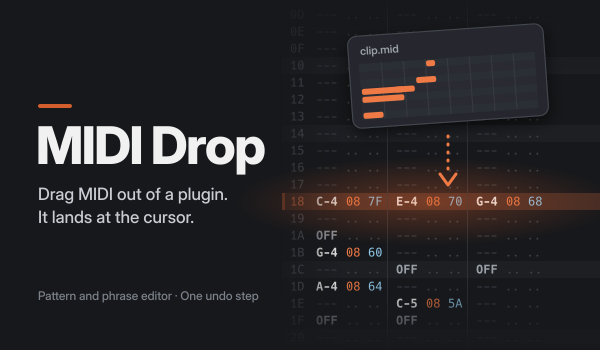
Drag MIDI out of a plugin, and it lands at your cursor: on the selected instrument, in the pattern editor or the phrase editor. No new instrument, no new track, no new pattern at the end of your song.
Project page, downloads and screenshots: https://github.com/dac514/mididrop
Quick start
- Open Tools > MIDI Drop… to see the monitor.
- Click Launch window. A small MIDI Drop window appears and stays on top. Put it next to your plugin. (Don’t have the window yet? MIDI Drop shows you which file to download. Open it once, and MIDI Drop remembers where it is.)
- Put the Renoise cursor where the clip should start.
- Drag MIDI from your plugin onto the MIDI Drop window. Done.
Changed your mind? Undo removes the whole drop in one step.
No window? No problem. If the MIDI is already a file on disk, click Import .mid file… in the monitor. The notes are placed the same way.
You can also open the monitor from the right-click menu of the pattern editor and the phrase editor, or give it a key: Global > Tools > Show MIDI Drop. The window has a key too: Global > Tools > Launch MIDI Drop Window.
When you quit Renoise, the window closes by itself a few seconds later.
The window opens where you left it last time. Can’t find it? Maybe it was on a screen you unplugged. Choose Tools > Find MIDI Drop Window, and the window comes back to the top left of your main screen. This has a key too: Global > Tools > Find MIDI Drop Window.
The monitor
- Bring MIDI in: shows whether the drop window is connected. Launch the window or import a file from here.
- Next import lands in: the editor, track, instrument, position, LPB and BPM where the next notes will go. If the LPB changes during the song, you see a warning here.
- Placement: the options below.
- Last import: what came in, where it went, and anything to know (for example, notes that did not fit).
Placement options
Timing
- Delay column: notes between lines keep their exact timing in the delay column.
- Snap to lines: every note moves to the nearest line.
Paste
- Overwrite: clears the lines and columns the clip covers, then writes.
- Mix (keep existing): only fills empty cells. Your notes stay.
Overflow (when the clip is longer than the space left)
- Spill into next patterns: keeps going in the next patterns of the song. If the song ends first, new patterns are added (same length as the current one).
- Grow the pattern: makes the pattern longer, up to 512 lines.
- Truncate: keeps what fits, and tells you how much was cut.
In the phrase editor, the phrase grows to fit (up to 512 lines), unless you pick Truncate.
Columns: how many note columns a clip may use (1 to 12). Chords and overlapping notes spread out over them. If a clip needs more, the note that would end first is cut short to make room. If too many notes start on the same line, the extra ones are left out. Either way, you get a warning.
Note-offs: writes an OFF where a note ends before the next note in its column.
Velocity to volume: puts the MIDI velocity into the volume column. Full velocity (127) leaves the column empty, which means full volume anyway.
Good to know
- Timing follows the beat. A quarter note is always LPB lines. The BPM does not change where notes go. In the phrase editor, the phrase’s own LPB is used.
-
LPB changes are not followed. If the song changes LPB (by automation or
ZLxx), the clip is placed at the LPB of the cursor position. The monitor warns you. - Multi-track MIDI is merged into the selected track.
- Notes match Renoise. MIDI note 60 is C-5, like Renoise’s own MIDI import.
-
The window and the tool talk on
127.0.0.1, port 19870. Nothing leaves your computer. If another program uses that port, change Window port in the monitor. The window started with Launch window picks up the new port.
Why is there a separate window?
Renoise lets a tool catch a dropped .mid file only as a song import. It asks
you to save, closes your song and opens an empty one first. And a tool’s own
window cannot receive drops at all. So the drop lands on a tiny window outside
Renoise, which hands the MIDI to this tool. The project page explains more,
and lists what the Renoise API would need so the window can go away.
Install
Drag com.dac514.MidiDrop.xrnx onto Renoise. Then get the drop window for
your system from https://github.com/dac514/mididrop/releases/latest and unpack
it anywhere (on macOS, into Applications). Open it once, and MIDI Drop
remembers where it is. Not sure which file? Click Launch window in the
monitor, and MIDI Drop tells you.
The window is not signed with a paid certificate:
-
macOS: right-click
MIDI Drop.app, choose Open, then Open again. Only the first time. - Windows: if SmartScreen appears, click More info, then Run anyway.