
We can't find the internet
Attempting to reconnect
Something went wrong!
Hang in there while we get back on track
Takes
by
Conner_Bw
Takes
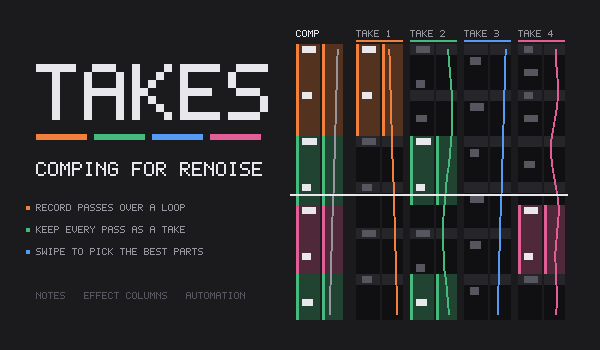
Record several passes over a loop in Renoise. Every pass is kept as a take. Then build the best version from the takes, and keep it in the pattern.
Install
Drag the .xrnx file onto the Renoise window. Renoise 3.5 is needed.
Quick start
- Loop one pattern, or loop a range of patterns in the sequencer.
- Put the cursor in the track that you want to record.
- Open Tools > Takes… and press Arm. Arm also turns pattern follow on.
- Turn edit mode on and play. Each pass of the loop becomes a take. Pattern follow must stay on, because Renoise only records live at the playhead. The status line in the Takes window says what is still missing. While you record, the track is cleared behind the playhead, so you only hear what you play.
- Turn edit mode off. You now hear the newest complete take.
- Swipe down a take lane with the mouse. Those lines go into the comp, which is the result.
- Press Done. The pattern keeps the comp. The takes stay in the song file.
Notes that were already in the track become take 1, so nothing is lost.
The pattern matrix shows where the takes go. The slots of the armed track are orange. While you record, all of them flash. Slots with notes flash red. Empty slots flash as a selection, because Renoise does not draw a colour on an empty slot. Done gives the slots their own colours back.
If you change the loop while the session is armed and nothing is recorded yet, the session moves to the new loop. After the first take, the takes stay with their loop.
The view
- Time runs downward, one row for each pattern line, like the pattern editor.
- COMP on the left is the result. Its colour bars show which take each part comes from.
- Each take has its own lane and colour. The parts in use are bright, the rest is dimmed.
- Each lane has two strips. Notes shows the note columns. Moves shows parameter moves: effect commands and automation.
- With Link notes and moves off, a swipe takes only the strip under the mouse. So you can keep the notes of one take and the filter sweep of another.
Mouse
| Action | Result |
|---|---|
| Swipe down a take lane | Use those lines in the comp. |
| Double-click a take lane | Use the whole take. |
| Click a take title | Hear that take alone. Click again to hear the comp. |
| Click the COMP title | Hear the comp. |
| Wheel | Zoom in and out. |
| Shift + wheel | Scroll up and down. |
| Ctrl + wheel, or the bar under the lanes | Move to earlier and later takes. |
Keys
The keys work when the Takes window has the focus.
| Key | Result |
|---|---|
| Up, Down | Move the selection by one beat. With Ctrl, by one line. |
| Shift + Up, Down | Make the selection longer or shorter. |
| Left, Right | Move to another take. |
| Enter | Give the selected lines to the take under the cursor. |
| 1 to 8 | Give the selected lines to that take lane. |
| S | Hear the take under the cursor. |
| 0 | Hear the comp. |
| Delete | Remove the selected lines from the comp. |
Other keys go to Renoise, so Space still starts and stops the song.
Good to know
- To record notes from the computer keyboard, click in the pattern editor first.
- A loop must last at least one second.
- Each slot of a looped sequence range needs its own pattern. The tool asks before it changes that.
- One track and one set of takes for each song.
- If you edit the track by hand, the tool keeps your edit as a new take.
- When you switch takes during a long note, that note may sound until the next note.
- Undo after a recording may step back further than you expect. Save before you experiment.
- The colour changes in the pattern matrix add steps to the undo history.
- Block loops inside a pattern are not supported.
Feedback
Comments, ideas and bug reports are welcome in the forum thread or on GitHub. These reports help most:
- A note ended up in the wrong take, or went missing.
- The view did not let you do what you tried to do.
- Something went wrong. Please add your tempo, lines per beat and pattern length.