
We can't find the internet
Attempting to reconnect
Something went wrong!
Hang in there while we get back on track
Arturia KeyLab Essential mk3
by
synka777
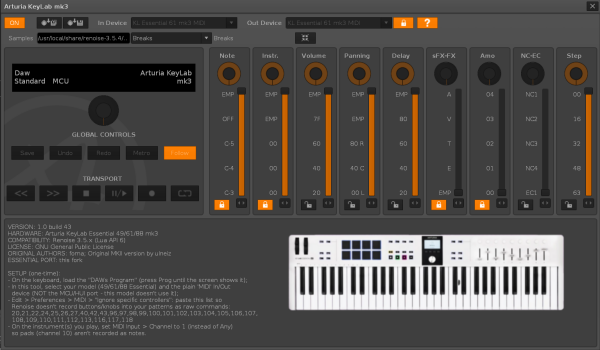
Arturia KeyLab Essential mk3 — Renoise Tool
A Renoise scripting tool that turns an Arturia KeyLab Essential 49/61/88 mk3 into a hands-on control surface for Renoise: transport, pattern-editing knobs and faders, pads, tap tempo, hardware LED feedback, and a dial-driven sample browser.
This is a fork of the original Arturia KeyLab mk3 tool by foma (itself based on the mkII tool by ulneiz), reworked specifically for the Essential line, which uses a genuinely different MIDI protocol from the Pro-line hardware the original tool targeted. It will not work correctly with a Pro-line KeyLab mk3 (49/61/88, no “Essential” in the name) — that hardware needs the original tool.
- Compatibility: Renoise 3.5.x (Lua API 6)
- Hardware: Arturia KeyLab Essential 49 / 61 / 88 mk3
- License: GNU General Public License
- O/S used for testing: Kubuntu 24.04
- Tested on hardware: Arturia KeyLab Essential 61 mk3
Installation
-
You can either download the latest binary from this repo under Releases, or
clone this repo and use
build.shto create it. -
Drag and drop the
.xrnxbinary into Renoise. - Restart Renoise.
- Open the tool from the Tools menu.
One-time setup
Do this once, ever — it’s not something you’ll need to repeat.
1. Put the keyboard in DAW mode
Press Prog on the keyboard until the screen shows “DAWs Program”. This is a physical setting on the hardware itself, not something Renoise or this tool controls.
2. Pick the right MIDI ports in the tool
In the tool’s own dialog, set both In Device and Out Device to your keyboard’s
plain MIDI port — something like KL Essential 61 mk3 MIDI.
⚠️ Do not use the “MCU/HUI” port. Unlike the Pro-line hardware, the Essential mk3’s MCU/HUI port stays completely silent — all DAW control data (transport, knobs, faders, dial) actually rides the plain MIDI port alongside your regular note input.
3. Tell Renoise to ignore the control-surface CCs
Without this step, Renoise will record every button press and knob turn straight into your patterns as raw effect commands whenever Edit Mode is on.
Go to Edit → Preferences → MIDI, find “Ignore specific controllers”, and paste:
20,21,22,24,25,26,27,40,42,43,96,97,98,99,100,101,102,103,104,105,106,107,108,109,110,111,112,113,116,117,118(The tool also shows this exact box the first time you ever open it, so you don’t have to come back here to find it.)
4. Restrict your instruments to MIDI channel 1 (optional, but recommended)
Pads send on MIDI channel 11 — separate from your keys (channel 1) — but an instrument set to listen on “Any” channel will trigger from both. If you don’t want pad hits to also play whatever instrument your keys are currently using, restrict that instrument’s MIDI Input to channel 1 instead: Instrument Editor → MIDI tab → Channel → 1.
5. Point the sample browser at your library (optional)
If you want to use the dial-driven sample browser (see below), type a root folder path into the Samples field in the tool’s dialog — your Renoise sample library, or any folder of your own. This is remembered across restarts. Everything else about the tool works fine without ever touching this.
What everything does
Transport
| Control | Action |
|---|---|
| Play | Toggles play/pause (properly stops on second press, doesn’t just restart) |
| Stop | Stops playback; pressing again while already stopped also silences any hanging notes |
| Record | Toggles Renoise’s Edit Mode (and switches to the Pattern Editor view) |
| Loop | Toggles pattern loop |
| Metronome | Toggles the metronome |
| Undo / Redo |
Real Renoise undo/redo (song:undo() / song:redo()) |
| Save | Quick-saves if the song already has a filename; otherwise prompts for one |
<< / >> |
Select previous / next track |
| Quant | Toggles Renoise’s global Record Quantization on/off |
| Part | Toggles sample-browse mode on/off (see below) |
| Tap | Tap a steady rhythm (2+ taps) to set the song’s BPM — averages your last 4 taps, resets if you pause more than 2 seconds |
Pads
8 physical pads, 2 banks (switched with the Bank button) — 16 addressable slots. They work as regular notes, same as on any MIDI controller. The one thing this tool adds is their LED color: lit to match Renoise’s current skin accent (orange by default), refreshed automatically every time you toggle the tool off and on — so if you change your Renoise theme, toggle off/on once to pick up the new color.
Knobs 1–9 and Faders 1–9
Both rows control the same nine things, in the same order — a knob and its matching fader are two ways to adjust the same value:
| # | Controls |
|---|---|
| 1 | Note (of the note column at the pattern cursor) |
| 2 | Instrument |
| 3 | Volume |
| 4 | Panning |
| 5 | Delay (pattern micro-timing offset — not an audio echo effect) |
| 6 |
Sample-FX / effect-command type (e.g. 0S sample offset, 0G glide, 0A arpeggio) |
| 7 | Sample-FX / effect-command amount |
| 8 | Note/effect column navigation |
| 9 | Step length (pattern cursor step size) |
Knobs 1–7 use direct position mapping — wherever the knob physically sits maps straight onto the target’s value, immediately, every time. Knobs 8 and 9 are different: they’re relative movements (not a “position”), so they use step-counting instead, which means they can occasionally get stuck at the knob’s own physical 0/127 limit until you turn it back the other way slightly. That’s an accepted quirk of those two specifically, not a bug.
All of this only does anything while Edit Mode is on.
Dial
Turn to navigate between Renoise’s main panels (Pattern Editor, Mixer, etc.) — turning right moves to the panel on the right, left to the one on the left. Press and hold to jump straight to the Instrument editor.
While sample-browse mode is on (toggled with Part), the dial does something different instead — see the next section.
Sample browser
A dial-driven way to audition and load sample files straight into your current instrument, without needing to load them manually first to hear how they sound across the keyboard.
- Samples field: the root folder to browse (e.g. your Renoise library). Set once, remembered across restarts.
-
Folder dropdown: every subfolder under that root, found recursively (not just
the root’s immediate children), shown as a path relative to the root — e.g.
Drums/Kicks/808. Picking a folder here loads nothing by itself — it just prepares that folder’s file list. You need to actually turn the dial (with Part/sample-browse mode on) to load its first sample. - Part: toggles sample-browse mode on/off. While on, the dial loads the next/previous sample file from the selected folder straight into your current instrument — immediately playable at any note, right on your actual keyboard.
- Path display: next to the dropdown, shows whichever folder is currently selected, truncated from the left if too long (so the deepest, most specific folder name stays visible rather than the root-ward part). Widens automatically when the tool is minimized.
- Whenever a sample loads via the dial, its full path shows both in the tool’s own display and in Renoise’s own status bar at the bottom of the main window — so you always know exactly which file you’re hearing.
Live audio preview without loading isn’t possible — Renoise’s own API docs state plainly that prehearing sample files isn’t supported via Tools — so this loads each one directly instead, which is still immediately playable at any note once loaded.
Pitch wheel & mod wheel
Deliberately not touched by this tool — both pass straight through to Renoise’s
native MIDI input, so you can map them yourself via each instrument’s own Macros
(pitchbend_macro / modulation_wheel_macro), the same way you would with any MIDI
controller. Pitch-bend needs a Pitch modulation entry on the instrument itself
(Sampler → Modulation tab) to actually do anything — that’s normal Renoise behaviour,
unrelated to this tool.
Hardware LED feedback
Save, Undo, Redo, Stop, and Tap flash briefly (bright, then back to dim) to confirm they fired. Play, Record, Loop, Quant, and Part deliberately have no persistent lit/unlit tracking — the keyboard’s own sleep mode resets its LEDs in a way that made that unreliable (see Known limitations), so those just show whatever the hardware’s own natural state is.
On-screen GUI
The tool’s own dialog mirrors the momentary flashes (Save/Undo/Redo/Stop) and lets you minimize most of the interface down to just the sample browser — folder dropdown, path display, and the minimize/maximize button itself — via the button at the end of the Samples row. Previous/Next Track are the only on-screen buttons that are actually clickable with the mouse; everything else is a status display, not a control — the hardware is the intended way to drive everything.
Known limitations
- Knobs 8 and 9 (relative-movement controls) can get stuck at their own physical 0/127 limit until you turn back slightly — see above.
- Play/Record/Loop/Quant/Part have no persistent lit/unlit LED tracking (see Hardware LED feedback above) — a deliberate trade-off for stability, not an oversight.
- The keyboard’s own sleep (“Vegas”) mode resets its LED brightness inconsistently on wake. No reliable software fix was found for this — Renoise Tools can’t read an LED’s current state back from the device, can’t detect a sleep/wake event, and can’t disable Vegas Mode itself via script. If it bothers you, it can be disabled through Arturia’s own MIDI Control Center on Windows/Mac (not confirmed 100% reliable even there, per user reports).
- No live audio preview for the sample browser — see that section above.
- The two Renoise settings in the setup steps above (ignore-controllers list, per-instrument channel) can’t be set automatically by a Renoise Tool — that’s a platform limitation, not something this tool chose not to do.
Credits
- Original KeyLab mkII tool: ulneiz
- KeyLab mk3 (Pro-line) port: foma
- KeyLab Essential mk3 port: this fork